


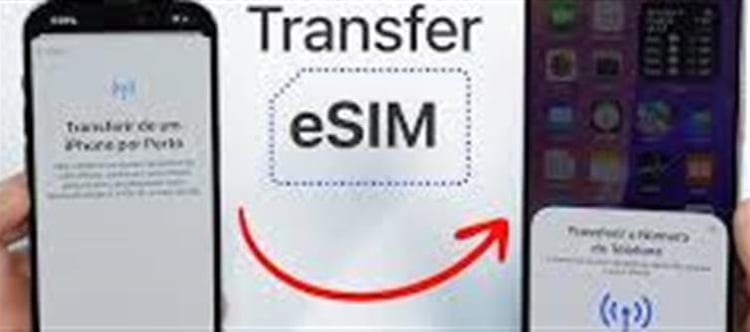

With the rise of eSIM technology, iphone users can now activate mobile plans without needing a physical SIM card. An eSIM (embedded SIM) allows multiple numbers on a single device and makes switching devices easier. If you’ve upgraded to a new iPhone, transferring your eSIM is essential to keep your mobile number active. Here’s a complete step-by-step guide.
1. Before You Begin
Make sure you have:
- Both iPhones (old and new) with iOS 16 or later
- Stable Wi-Fi connection
- Access to your carrier account or activation details
- Apple ID signed in on both devices
Note: Some carriers may require you to contact them for eSIM transfer if automatic transfer isn’t supported.
2. Transfer eSIM Using Quick Start (Automatic Transfer)
Apple’s Quick Start makes it easy to transfer eSIM when setting up a new iPhone:
Turn on your new iPhone and place it near your old iPhone
The Quick Start screen appears on your old iphone → Tap Set Up New iPhone
Follow the on-screen instructions and sign in with your Apple ID
During setup, you’ll see a prompt to transfer your eSIM
Select the mobile plan you want to transfer
Complete the setup → Your eSIM will be activated on the new iPhone
3. Transfer eSIM Using Carrier App or QR Code
If Quick Start isn’t available, you can transfer eSIM manually:
Option 1: Using Carrier App
Open your carrier’s app on the new iPhone
Select Add eSIM / Transfer eSIM
Follow the on-screen steps → eSIM will be activated on the new iPhone
Option 2: Using QR Code
On the new iphone, go to Settings → Cellular → Add Cellular Plan
Scan the QR code provided by your carrier
Complete the activation process → Your number is now active on the new iPhone
4. After Transferring eSIM
- Test your mobile network by making a call or using mobile data
- Delete the eSIM from your old iphone if you no longer plan to use it
- For dual-SIM users, make sure your primary and secondary numbers are correctly set
✅ Quick Summary
Method
Steps
Quick Start
Place new iphone near old → Follow on-screen instructions → Transfer eSIM
Carrier App
Open carrier app → Select Add/Transfer eSIM → Activate
QR Code
Settings → Cellular → Add Cellular Plan → Scan QR → Activate
Conclusion
Transferring your eSIM from one iphone to another is now simpler than ever, thanks to Apple’s Quick Start and carrier support. By following these steps, you can keep your mobile number active, avoid downtime, and enjoy seamless connectivity on your new iPhone.
Disclaimer:
The views and opinions expressed in this article are those of the author and do not necessarily reflect the official policy or position of any agency, organization, employer, or company. All information provided is for general informational purposes only. While every effort has been made to ensure accuracy, we make no representations or warranties of any kind, express or implied, about the completeness, reliability, or suitability of the information contained herein. Readers are advised to verify facts and seek professional advice where necessary. Any reliance placed on such information is strictly at the reader’s own risk.
 click and follow Indiaherald WhatsApp channel