
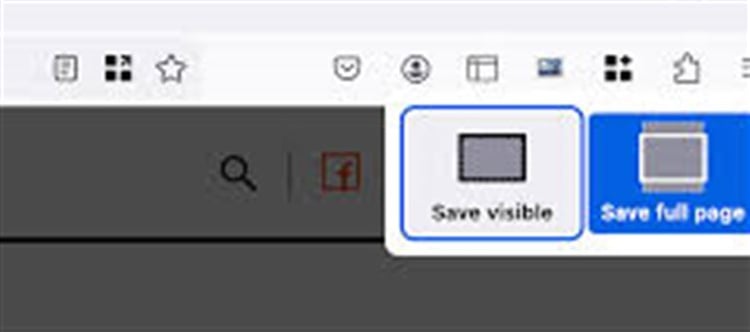


Capturing full-page screenshots in Google Chrome is a handy trick for saving web pages, sharing designs, or documenting content. Unlike standard screenshots, full-page captures include everything from top to bottom, even the parts that require scrolling. Here’s how you can do it easily.
1. Use Chrome’s Built-In Developer Tools
Chrome has a hidden feature that allows full-page captures without any extensions.
Steps:
Open the page you want to capture.
Press Ctrl + Shift + I (Windows) or Cmd + Option + I (Mac) to open Developer Tools.
Press Ctrl + Shift + P (Windows) or Cmd + Shift + P (Mac) to open the Command Menu.
Type “screenshot” and select “Capture full size screenshot”.
The screenshot will be downloaded as a PNG file.
Benefits: No extra tools or extensions are needed, and it works perfectly for most pages.
2. Use Chrome Extensions
There are several Chrome extensions that make full-page screenshots easier:
- GoFullPage: Captures the entire page with one click and lets you save as PDF or image.
- Fireshot: Offers full-page screenshots and advanced editing tools.
- Awesome Screenshot: Captures, annotates, and shares screenshots easily.
Steps:
Install the extension from the Chrome Web Store.
Click the extension icon in the toolbar.
Select Full Page Screenshot.
Save or share the file as needed.
Benefits: Extensions often include editing, annotation, and direct sharing, making them ideal for professional use.
3. Use Online Tools
If you don’t want to install anything, you can use online screenshot tools like:
- Web-capture.net
- Snapito
- PagePeeker
Steps:
Open the online tool.
Paste the URL of the web page.
Click Capture to generate a full-page screenshot.
Download the image or PDF.
Benefits: Works across devices and platforms without installation.
4. Tips for Best Results
- Scrollable pages with dynamic content may require extensions for accurate capture.
- High-resolution displays will result in clearer screenshots.
- Use PDF export if you need to share entire web pages professionally.
- Clear unnecessary pop-ups or ads before capturing for a clean screenshot.
✅ Key Takeaway
Taking full-page screenshots in Chrome is easy with Developer Tools, extensions, or online tools. Choosing the right method depends on your workflow:
- Quick capture: Use Developer Tools
- Professional use with editing: Use extensions like GoFullPage or Fireshot
- No installation needed: Use online tools
Disclaimer:
The views and opinions expressed in this article are those of the author and do not necessarily reflect the official policy or position of any agency, organization, employer, or company. All information provided is for general informational purposes only. While every effort has been made to ensure accuracy, we make no representations or warranties of any kind, express or implied, about the completeness, reliability, or suitability of the information contained herein. Readers are advised to verify facts and seek professional advice where necessary. Any reliance placed on such information is strictly at the reader’s own risk.
 click and follow Indiaherald WhatsApp channel