


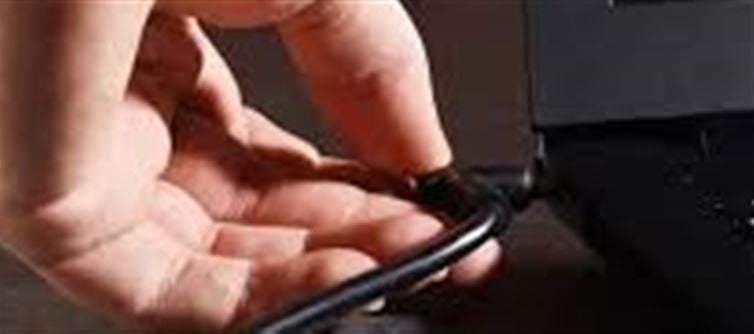

A computer that won’t start can be frustrating, but most issues can be fixed with simple troubleshooting steps. Follow this guide to check for the problem and get your PC running again.
1️⃣ Check the Power Supply
- Ensure the power cable is properly plugged in and the outlet is working.
- For laptops, check that the charger is connected and the battery isn’t dead.
- Try removing the battery (if possible) and powering on with just the charger.
💡 Tip: Use a different power outlet or cable to rule out electrical issues.
2️⃣ Inspect the Monitor or Display
- If the computer seems on (fans spinning, lights blinking) but the screen is blank, the issue may be with the monitor or display connection.
- Check that the HDMI, VGA, or DisplayPort cable is securely connected.
- Try connecting the monitor to another device to ensure it’s working.
3️⃣ Remove External Devices
- Disconnect all USB drives, printers, external hard drives, or other peripherals.
- Sometimes, a faulty external device can prevent the computer from booting.
- After removing, try powering on again.
4️⃣ Listen for Beeps or Look at Indicator Lights
- Many computers give beep codes or blinking lights to indicate hardware problems.
- Refer to your motherboard or manufacturer’s manual to interpret these codes.
- Common issues signaled by beeps include RAM failure, graphics card issues, or motherboard errors.
5️⃣ Check Internal Hardware
Only if you are comfortable opening the case:
- Ensure RAM sticks, graphics card, and cables are properly seated.
- Dust or loose connections can prevent the computer from starting.
- Reseat components carefully and try again.
6️⃣ Try Safe Boot or BIOS Access
- On startup, press F2, F10, DEL, or ESC (depending on your system) to enter BIOS.
- If BIOS loads, the problem may be with the operating system rather than hardware.
- From BIOS, check if storage drives and ram are detected.
7️⃣ Check for Overheating or Short Circuits
- If your PC was shutting down unexpectedly before, it may have an overheating issue.
- Ensure fans are running and vents are not blocked.
- Look for signs of burnt components or damaged circuits on the motherboard.
8️⃣ Last Resort: Seek Professional Help
- If none of the above works, it might be a hardware failure like a dead motherboard, CPU, or power supply.
- Take the computer to a certified technician or service center for diagnosis.
✅ Key Takeaways
- Start with simple fixes first: power cables, battery, monitor.
- Remove external devices and check internal connections carefully.
- Use BIOS and beep codes to identify possible hardware issues.
- Don’t panic—most boot issues can be solved with step-by-step troubleshooting.
Disclaimer:
The views and opinions expressed in this article are those of the author and do not necessarily reflect the official policy or position of any agency, organization, employer, or company. All information provided is for general informational purposes only. While every effort has been made to ensure accuracy, we make no representations or warranties of any kind, express or implied, about the completeness, reliability, or suitability of the information contained herein. Readers are advised to verify facts and seek professional advice where necessary. Any reliance placed on such information is strictly at the reader’s own risk.
 click and follow Indiaherald WhatsApp channel