


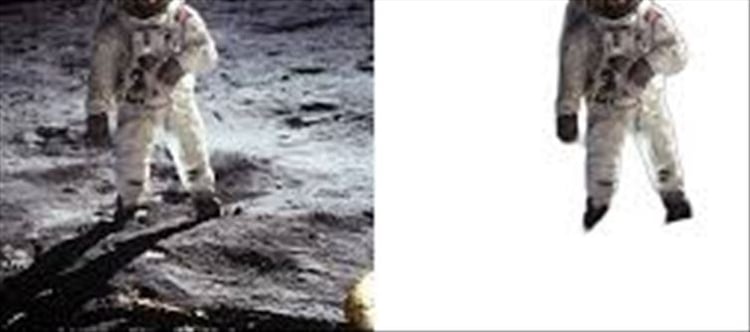

Removing image backgrounds is now very simple thanks to AI tools. You no longer need Photoshop skills—most tools do it in one click with high accuracy.
🤖 What AI Background Removal Does
AI tools automatically:
- Detect the main subject (person, object, product)
- Separate it from the background
- Remove or replace the background
- Preserve edges like hair, shadows, and details
This works using computer vision and segmentation models.
⚡ Best Easy AI Methods
🥇 1. Remove.bg (Fastest One-Click Tool)
How to use:
- Upload your image
- AI removes background automatically
- Download PNG with transparent background
Why it’s popular:
- No editing required
- Works in seconds
- Great for portraits and product photos
🧠 2. Canva Background Remover (Best for Design Work)
Canva
How to use:
- Upload image in Canva
- Click “Edit Image → Background Remover”
- AI removes background instantly
Best for:
- Social media posts
- Thumbnails
- Posters and ads
📱 3. Adobe Express / Photoshop AI Tool
Adobe Photoshop
How it works:
- Open image
- Use “Remove Background” or “Select Subject”
- AI automatically isolates the object
Best for:
- Professional editing
- High-quality commercial images
📲 4. mobile Apps (Quick Editing)
Popular apps:
- PhotoRoom
- PicsArt
- Background Eraser apps
Best for:
- Instagram posts
- Quick edits on phone
- E-commerce product images
🧩 Step-by-Step Universal Method
No matter which tool you use:
Open the AI tool
Upload your image
Click Remove Background
Wait 2–5 seconds
Download image (PNG format recommended)
💡 Tips for Best Results
- Use high-resolution images
- Keep subject clearly visible
- Avoid cluttered backgrounds
- Use PNG format for transparency
⚠️ Common Mistakes
- Uploading blurry images
- Using low-quality screenshots
- Not checking edge details (hair, objects)
- Expecting perfect results for complex scenes every time
🧾 Conclusion
AI tools like Remove.bg, Canva, and Photoshop make background removal fast, easy, and accurate. What once took minutes in editing software now takes just a few seconds with AI.
👉 In short: Upload → Click → Download.
Disclaimer:
The views and opinions expressed in this article are those of the author and do not necessarily reflect the official policy or position of any agency, organization, employer, or company. All information provided is for general informational purposes only. While every effort has been made to ensure accuracy, we make no representations or warranties of any kind, express or implied, about the completeness, reliability, or suitability of the information contained herein. Readers are advised to verify facts and seek professional advice where necessary. Any reliance placed on such information is strictly at the reader’s own risk.
 click and follow Indiaherald WhatsApp channel