



Introduction
If you’re moving from an iPhone to an Android device, you may worry about losing your whatsapp chats, photos, and media. whatsapp now supports official chat migration, making the process seamless.
1. Requirements for Chat Transfer
- Both devices must have WhatsApp installed
- Use a USB-C to Lightning cable (for wired transfer) or follow Google Drive method if supported
- Android device must be brand new or factory reset for initial transfer setup
- iPhone must have WhatsApp iOS version 2.21.160 or later
2. Using Official whatsapp Transfer (Cable Method)
Step-by-Step:
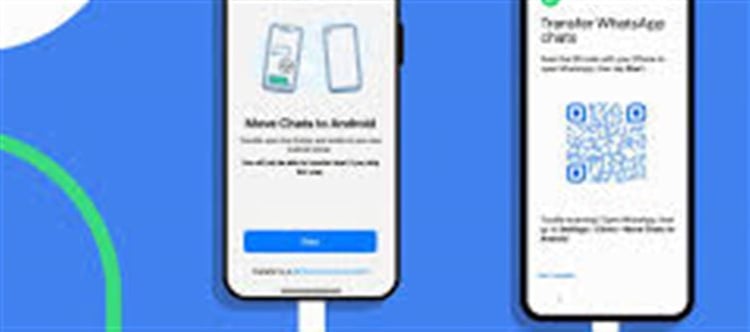
Connect your iPhone to Android using a USB-C to Lightning cable.
Open WhatsApp on Android and tap Import from iPhone when prompted.
Scan the QR code displayed on Android using iphone WhatsApp.
Tap Start on iphone to export chats.
Wait for the process to complete, then continue setup on Android.
✅ All chats, photos, and voice messages will now appear on your new Android device.
3. Using google Drive Backup (if supported)
On iphone, backup chats to iCloud (this is optional for reference).
On Android, during whatsapp setup, select Restore from iCloud/WhatsApp backup.
Follow the prompts to restore chats.
Note: This method works only if your Android supports whatsapp iCloud restore, which is limited to certain samsung and google Pixel devices.
4. Tips After Transfer
- Check media files: Some images or videos may need manual transfer using a computer or cloud service.
- Make sure notifications and permissions are enabled on Android.
- Delete whatsapp from old iPhone only after confirming all chats are successfully transferred.
5. Common Issues
- Transfer stuck: Ensure cable connection is secure and both devices are unlocked.
- Chats missing: Re-run transfer or use a third-party tool (like MobileTrans or Dr.Fone) carefully.
- Media not transferring: Manually export media via google Drive or cloud storage.
Conclusion
Transferring whatsapp chats from iphone to Android is now much easier thanks to official whatsapp migration tools. Using a USB-C to Lightning cable or supported google Drive backup, you can keep all your chats, photos, and voice messages intact while switching devices.
Disclaimer:
The views and opinions expressed in this article are those of the author and do not necessarily reflect the official policy or position of any agency, organization, employer, or company. All information provided is for general informational purposes only. While every effort has been made to ensure accuracy, we make no representations or warranties of any kind, express or implied, about the completeness, reliability, or suitability of the information contained herein. Readers are advised to verify facts and seek professional advice where necessary. Any reliance placed on such information is strictly at the reader’s own risk.
 click and follow Indiaherald WhatsApp channel