


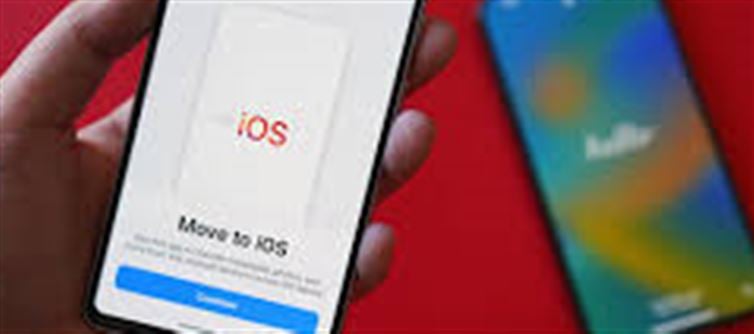

Switching from an Android phone to an iphone can be exciting, but one common concern is how to safely transfer all your data. Contacts, photos, messages, apps, and other files are important, and luckily, apple provides several ways to make the transition smooth.
1. Use Apple’s ‘Move to iOS’ App
Apple has designed the Move to iOS app specifically for Android-to-iPhone transfers. Here’s how to use it:
Step 1: Prepare Both Phones
· Connect both devices to Wi-Fi.
· Ensure both phones are plugged into power to prevent interruptions.
Step 2: Install ‘Move to iOS’ on Android
· Download the app from Google Play Store.
Step 3: Set Up Your iPhone
· During iphone setup, select “Move Data from Android”.
Step 4: Connect Devices
· Open the Move to iOS app on your Android.
· Enter the code displayed on your iphone to create a secure connection.
Step 5: Choose Data to Transfer
· You can transfer:
o Contacts
o Message history (SMS/MMS)
o Photos and videos
o Web bookmarks
o Mail accounts
o Calendars
· Tap Next to begin the transfer.
Step 6: Complete the Transfer
· Wait until the progress bar on iphone completes.
· Finish the iphone setup after the transfer is done.
Note: Some apps may need to be re-downloaded manually from the App Store.
2. Transfer Photos and Videos Using google Photos
If you don’t want to use Move to iOS:
· Step 1: Install Google Photos on both Android and iPhone.
· Step 2: Backup photos and videos on Android to google Photos.
· Step 3: Sign in with the same google account on iPhone.
· Step 4: Access all photos and videos through the google Photos app on iPhone.
3. Transfer Contacts Using google Account
· Sync contacts on Android with your Google account:
o Settings → Accounts → google → Sync Contacts
· On iPhone:
o Settings → Mail → Accounts → Add Account → Google
o Enable Contacts to sync
4. Transfer whatsapp Chat History
· whatsapp allows Android to iphone chat migration:
o Update whatsapp on both devices
o Use “Move to iOS” feature during whatsapp setup on iPhone
o Follow the on-screen instructions to transfer chat history
5. Transfer Other Files
· Documents, PDFs, music: Use cloud storage services like google Drive, Dropbox, or OneDrive
· Upload files from Android → Download on iphone using the same app
✅ Quick Summary
Data Type
Transfer Method
Contacts
Move to iOS app or google account sync
Photos/Videos
Move to iOS or google Photos
Messages
Move to iOS app or whatsapp transfer
Apps
Download manually from App Store
Documents
Cloud storage (Google Drive, Dropbox, OneDrive)
Conclusion
Transferring data from Android to iphone is easier than ever with Move to iOS and cloud-based solutions. By following these steps, you can seamlessly move contacts, messages, photos, and more, making your new iphone feel just like home.
Disclaimer:
The views and opinions expressed in this article are those of the author and do not necessarily reflect the official policy or position of any agency, organization, employer, or company. All information provided is for general informational purposes only. While every effort has been made to ensure accuracy, we make no representations or warranties of any kind, express or implied, about the completeness, reliability, or suitability of the information contained herein. Readers are advised to verify facts and seek professional advice where necessary. Any reliance placed on such information is strictly at the reader’s own risk.
 click and follow Indiaherald WhatsApp channel